Keep track of places
The restaurant that was worth it, the client's office, the beach with the good light — on a map instead of somewhere in a note.
The restaurant your colleague dragged you to and you would go back to tomorrow. The client's office, three streets from where the maps app keeps sending you. The beach that is worth the extra half hour. You know all of them. You could not name one of them right now.
The trick is to treat a place as a thing rather than a dot. It gets a note of its own — Bar Nou, with the category Location — and that note gets two things: a pin, so it is on the map, and a line to the trip it belongs to. Which is what lets you arrive from either direction: open the trip and the place is on it, open the map and the trip is behind the pin.
Set up once
Nothing. A new account already carries a Location category, third in the same list as Task and Person , and Locations has a place of its own in your sidebar. Rename them, give them other icons, delete what you never use. You do not have to touch any of it first.
The loop
-
Write the place down
In the create form: Bar Nou , then a space and + , then three letters to find Location. The character is swallowed, the caret goes back where it was, and the button under the field wears the pin. Enter. You now have a page for the place — somewhere to put what to order, when it is shut, who recommended it. Location is only the one you start with: make Restaurant, Playground, Hotel if that is how you actually sort places, and the map will filter on those instead.
-
Find the spot
Locations in the sidebar, then the pin button top right. One field, two answers: what you already keep is listed first — narrowing the map behind it as you type — and under Add a place come the addresses you have no pin for. Type Bar Nou and pick it from those. The map flies there and the place is kept, with the street it is on already filled in — a place carries no name of its own, because the note you just wrote is its name. Pick one of your own instead and you land on it, which is the quickest way back to somewhere you have been before.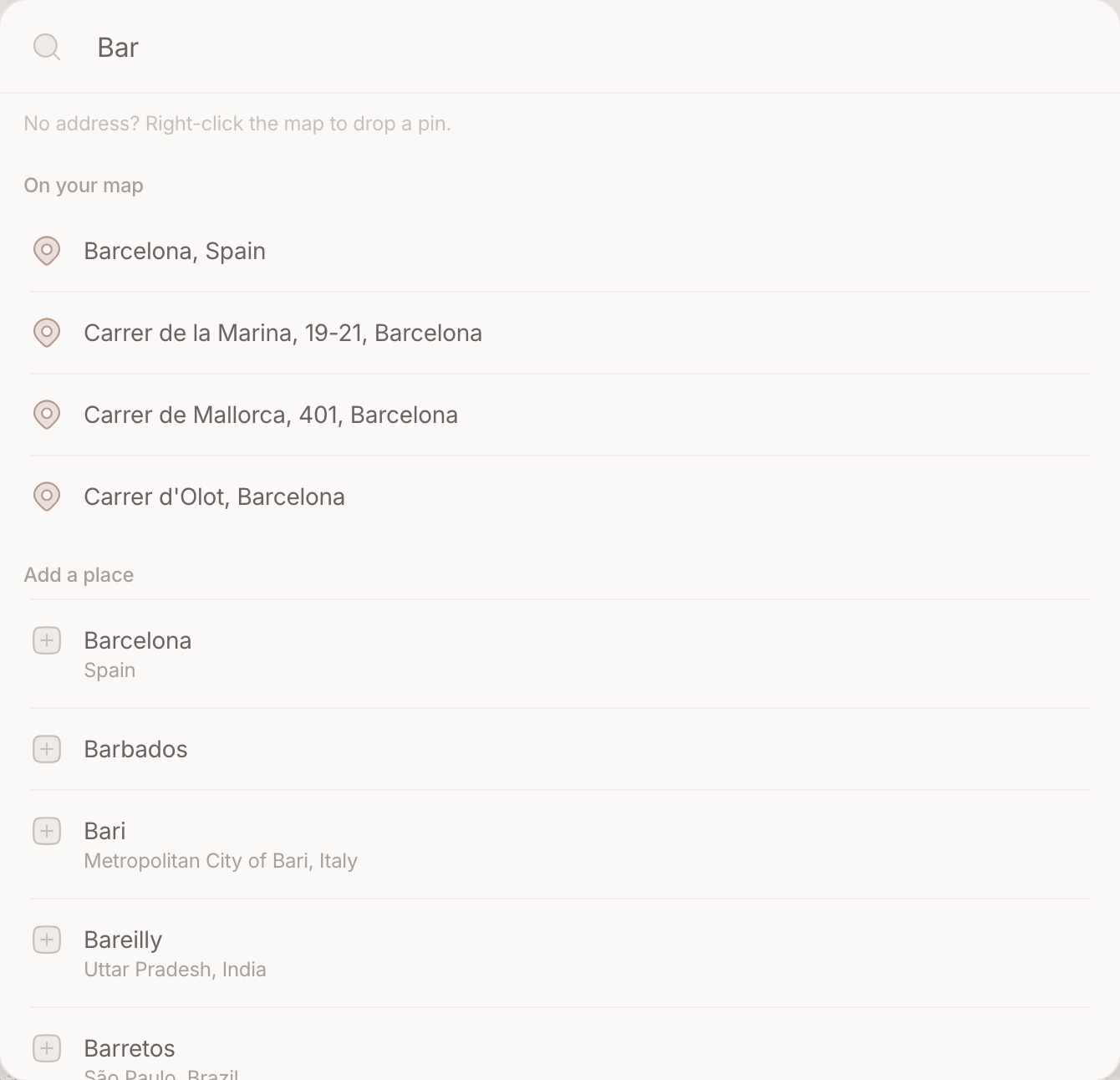
-
Hang your note on it
Picking the address drops you straight into the same search-or-create field as the create form, with the place's name already in it — so the note you wrote a minute ago is standing underneath, waiting to be picked. Nothing there yet? Then this is where you write it, area and category included; which category a place belongs to is yours to decide, whether that is Location or Restaurant or Playground. Walk away instead and nothing is kept — a pin with no note on it is not a place you wanted.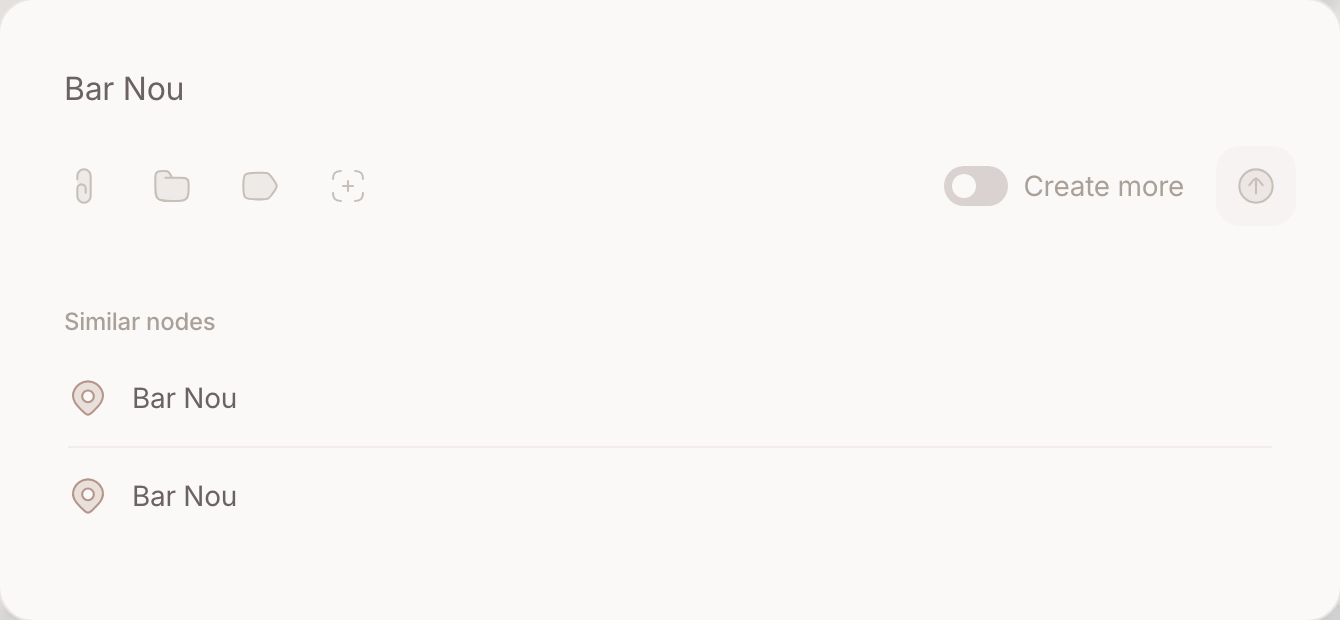
-
Say what it belongs to
Back on the note, the add button beside Relations takes the trip, the client, the person — same field again. The link is not one-way: the trip now lists the place, and the place lists the trip. This is the step that turns a pin into something you will actually find, because you will go looking for the trip long before you go looking for the café. -
Open it again, months later
One page: the name, the Location label, whatever you wrote on it, the pin under Sources and the trip under Relations. Click the pin and it opens in the frame with a small map of the spot. Nothing had to be filed anywhere — it was filed by being written.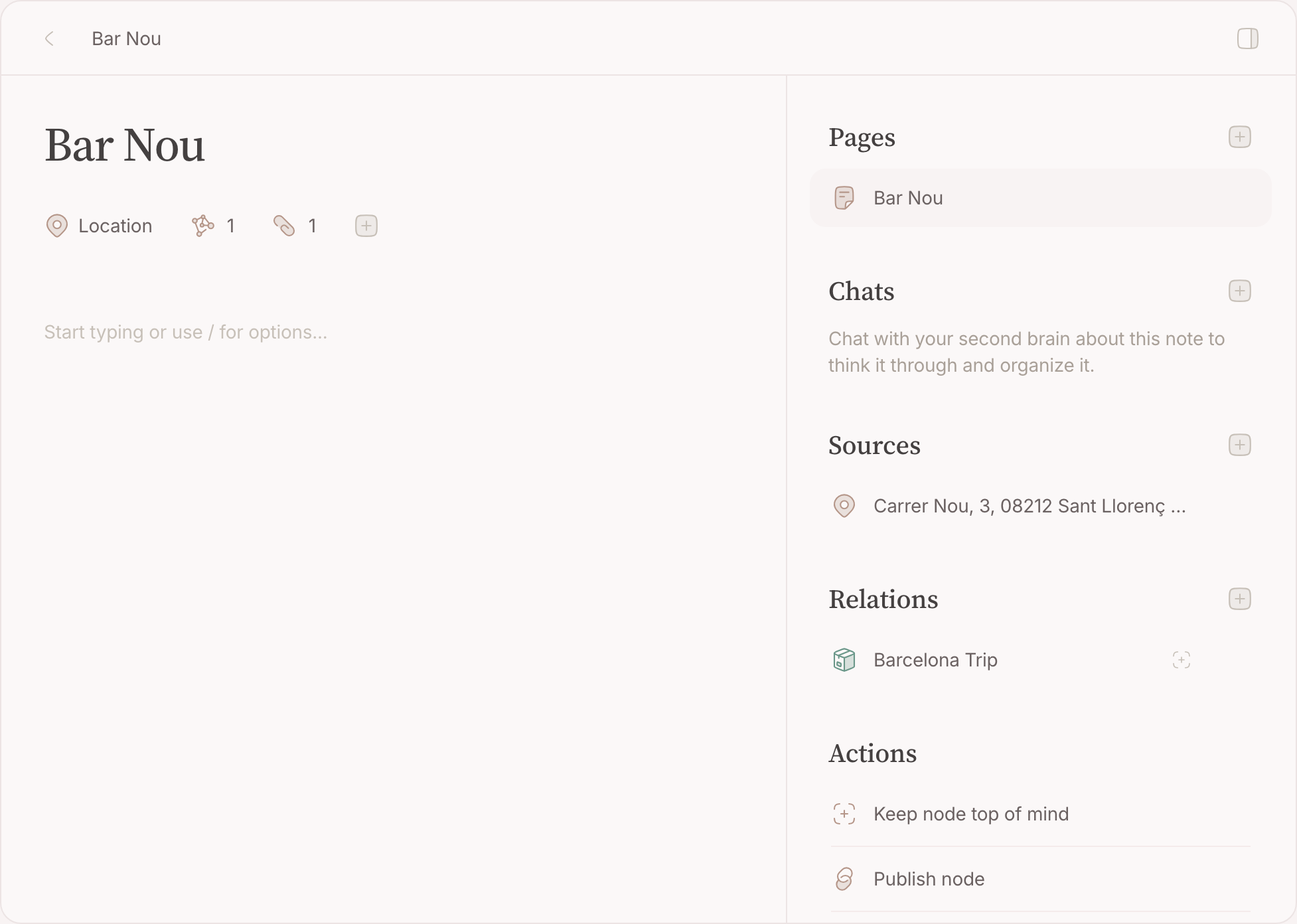
-
Or start from the map
Every place you have kept, at once. Pins take their colour from the area of the note behind them, so Work and Family are two colours on one map; a number in a circle is several places too close together to draw apart, and clicking it opens them up. Click a pin and you are back on the note.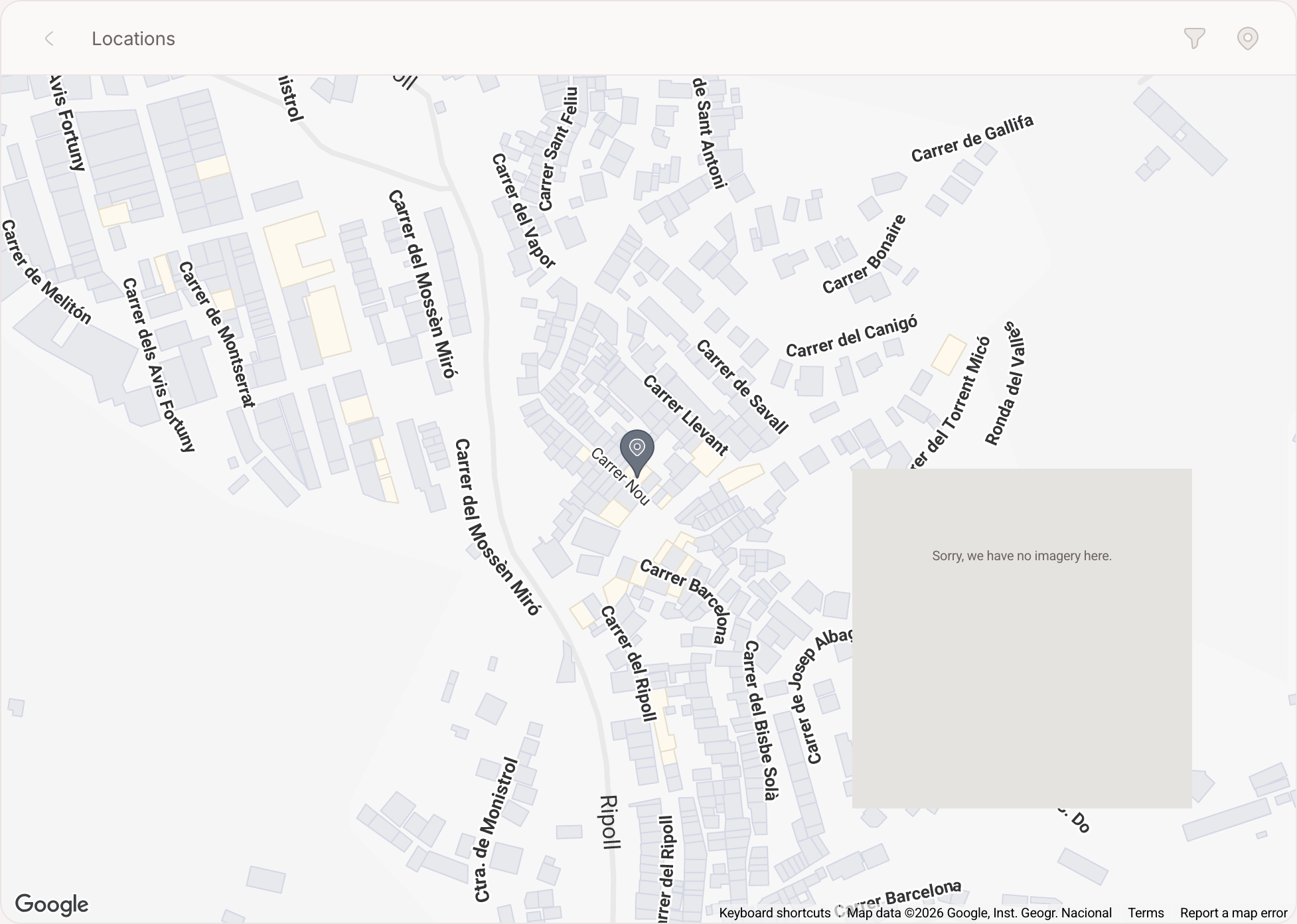
Where your second brain helps
Less here than elsewhere, and it is better to say so. A place is the one thing your inbox never hands you: mail, meetings, signals and thoughts are read and sorted by the inbox reflex, a place is never proposed by it. What your second brain does get is the reading: a place is a note like any other, so what you wrote on it is context like anything else — which is why "where did we take them last time" is answered rather than guessed.
Going further
Narrow the map and keep it. The filter on the map takes areas and categories — only Work, only the places you tagged as restaurants — and a map you have narrowed can be saved as a lens, a tab of its own on the map. Locations opens on the tab you last used, so the version you actually use is one click away rather than four every time.
Search the map by what happened there. The same field narrows on two things at once: the street a place is on, and the titles of the notes behind it. So Barcelona leaves the pins of everything that trip touched standing, and Hopland finds the café you can picture but cannot name.
One place, many notes. A pin can hold more than one note, and a note more than one pin. The office of a client you have worked with for years is one place with a dinner, a workshop and a contract hanging off it — which is a history of a room rather than an address.